

How to Install IPTV on Android TV
Android TV is one of
the best platforms for IPTV. Whether you have a Sony TV, a Philips TV, or an NVIDIA Shield, the process is
smooth and easy. Because Android is an open system, you have access to the best players in the world. In this
guide, we will show you how to set up your Android TV for live streaming in just a few minutes. We recommend
using IPTV Smarters PRO for the best performance.
Android TV offers the widest selection of IPTV apps.
Method 1: Google
Play Store (Easiest)
Most legitimate IPTV
players are available directly in the Play Store.
- Open the Google Play Store on your TV.
- Search for “IPTV Smarters Pro” or “TiviMate”.
- Click Install.
- Open the app and log in with your subscription details.
Note
If you can’t find the app you want in the store, use Method
2.
The Play Store is the safest place to get your apps.
Method 2:
Sideloading with Downloader
If the app is not in
the store, you can install it manually. This is called “sideloading”.
Step 1: Get the
Downloader App
- Search for “Downloader” in the Play Store.
- Install it.
Step 2: Enable
Unknown Sources
- Go to Settings > Device Preferences > Security & Restrictions.
- Turn on “Unknown Sources” for the Downloader app.
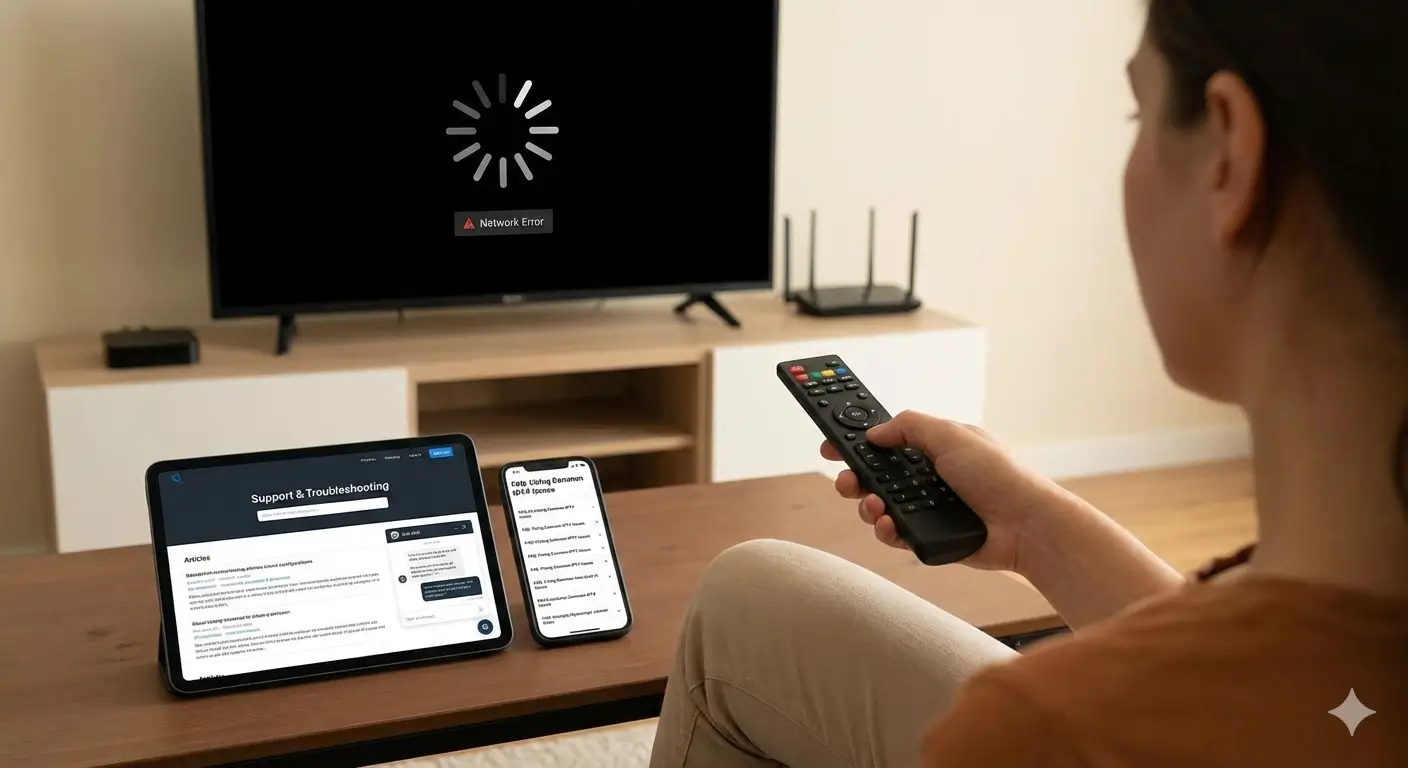
You must allow installation from unknown sources to
sideload apps.
Step 3:
Download and Install
- Open Downloader.
- Enter the code for your app (e.g., 78522 for Smarters Pro).
- Click Go, wait for the download, and click Install.
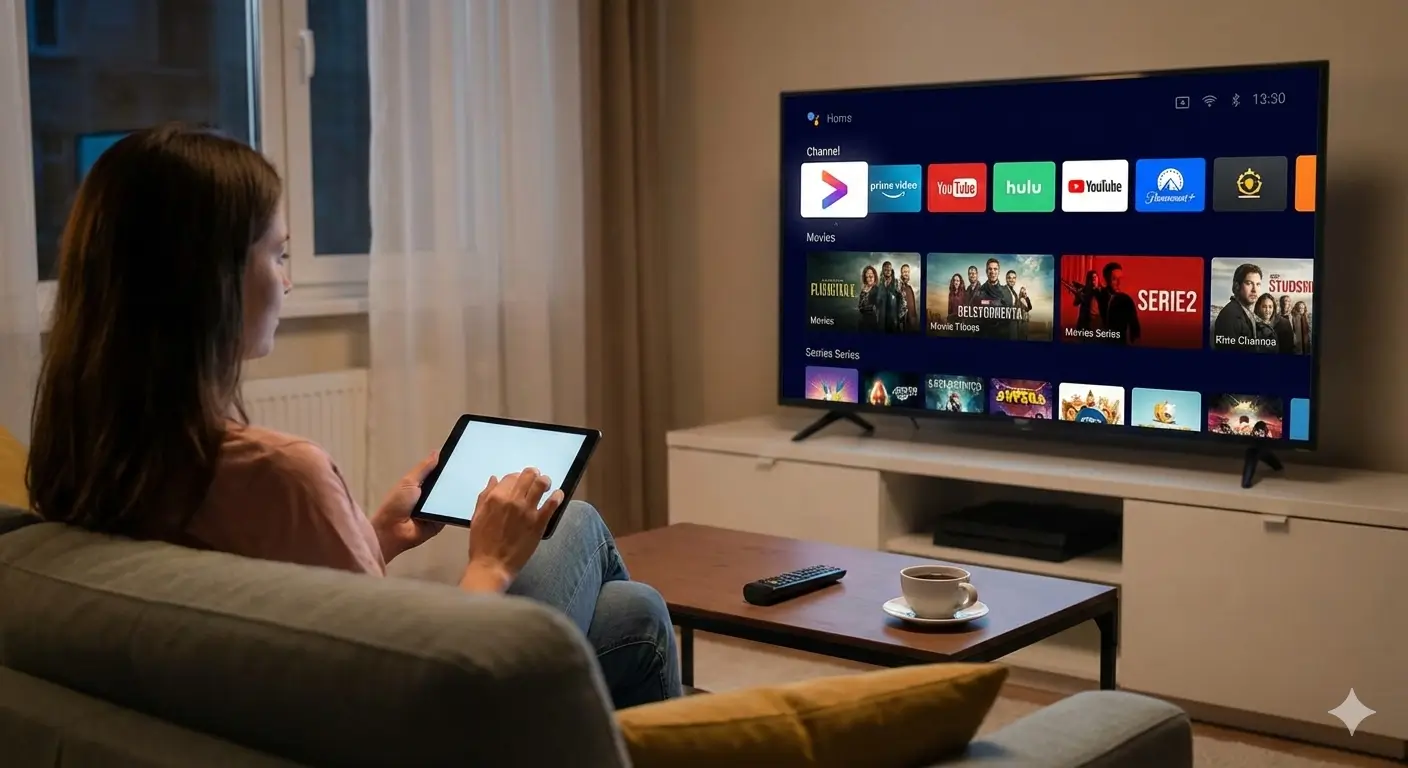
Sideloading lets you install any Android app on your
TV.
Step 4: Setup Your
Playlist
Once the app is
installed, open it. Select “Login with Xtream Codes”. Enter the username, password, and URL that your IPTV
provider sent to your email. Click “Add User” and you are done!
Conclusion
Android TV is powerful
and flexible. Whether you use the Play Store or sideload apps, getting IPTV running is a breeze. Now you can
enjoy all your favorite content on the big screen. For more tips, visit Smarters Pro.
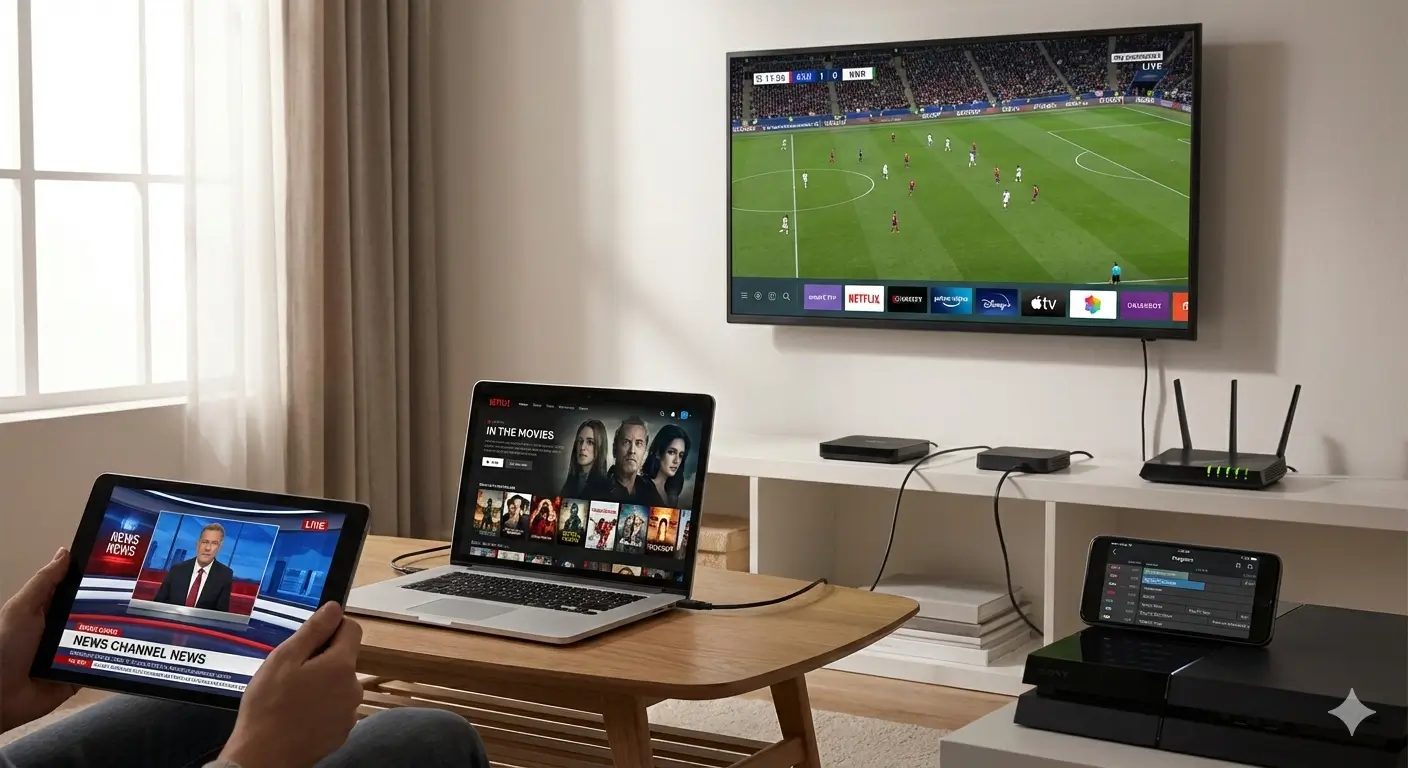
Turn your living room into a home theater with
Android TV.