

How to Set Up IPTV: A Step-by-Step Guide
So, you have decided to
try IPTV. Great choice! But now you might be wondering, “How do I actually get this thing working?” Don’t worry.
Setting up IPTV is much easier than installing a satellite dish. You don’t need any tools or technical skills.
In this guide, we will walk you through the general process of setting up IPTV on your favorite device. To make
things even easier, we recommend using the user-friendly IPTV
Smarters PRO app.
You only need a few minutes to get your new TV
service running.
Step 1: Get Your
Subscription
Before you do anything,
you need a service provider. Once you sign up, they will send you an email with your login details. This usually
includes:
- M3U URL: A long link that contains your playlist.
- Username and Password: For logging into apps.
- Xtream Codes URL: A shorter server address
(http://example.com:8080).
Important
Keep this email safe! You will need these details for every
device you connect.
Step 2: Choose Your
Device
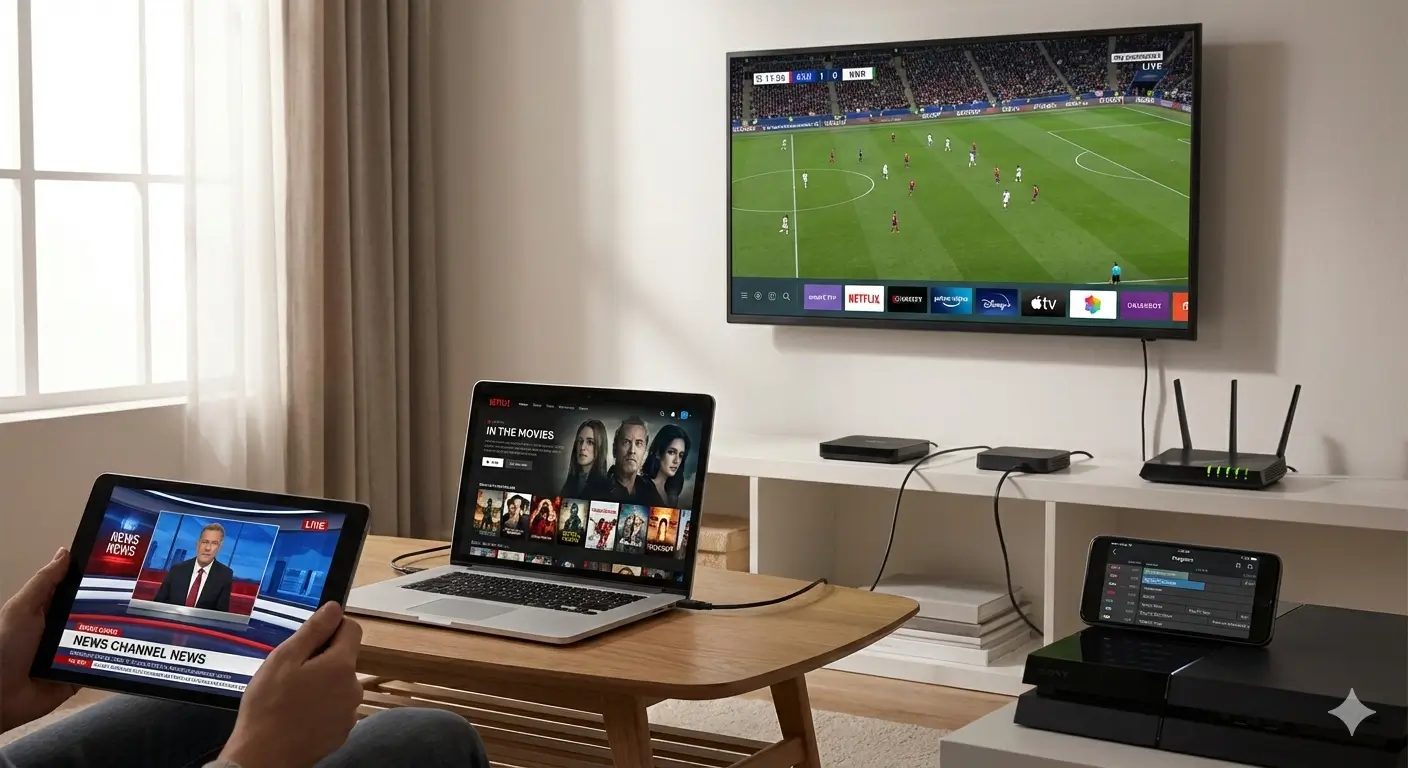
You can watch IPTV on
almost anything. Pick the device you want to use:
- Smart TV (Samsung/LG): Good for living rooms.
- Fire Stick / Android Box: The best option for speed and apps.
- Smartphone / Tablet: Great for watching on the go.
- Computer: Good for testing or watching at your desk.
IPTV works on the devices you already own.
Step 3: Install an
IPTV Player
This is the software
that plays the video. Think of it like a web browser for TV. There are many players, but IPTV Smarters
Pro is one of the most popular because it is free and easy to use.
For
Android/Fire Stick: Use the “Downloader” app to install it if it’s not in the store.
For Smart
TVs: Search for “Smarters” or “IPTV” in your TV’s app store.
For
iOS: Download “Smarters Player Lite” from the App Store.
Downloading the player is just like downloading any
other app.
Step 4: Enter Your
Details
Open the app you just
installed. You will see a login screen. Select “Login with Xtream Codes API” if available (it is the easiest
method).
- Name: Type anything you want (e.g., “My TV”).
- Username: Enter the username from your email.
- Password: Enter the password from your email.
- URL: Enter the server URL from your email.
Click “Add User” or
“Login”. The app will now download your channels. This might take a minute.
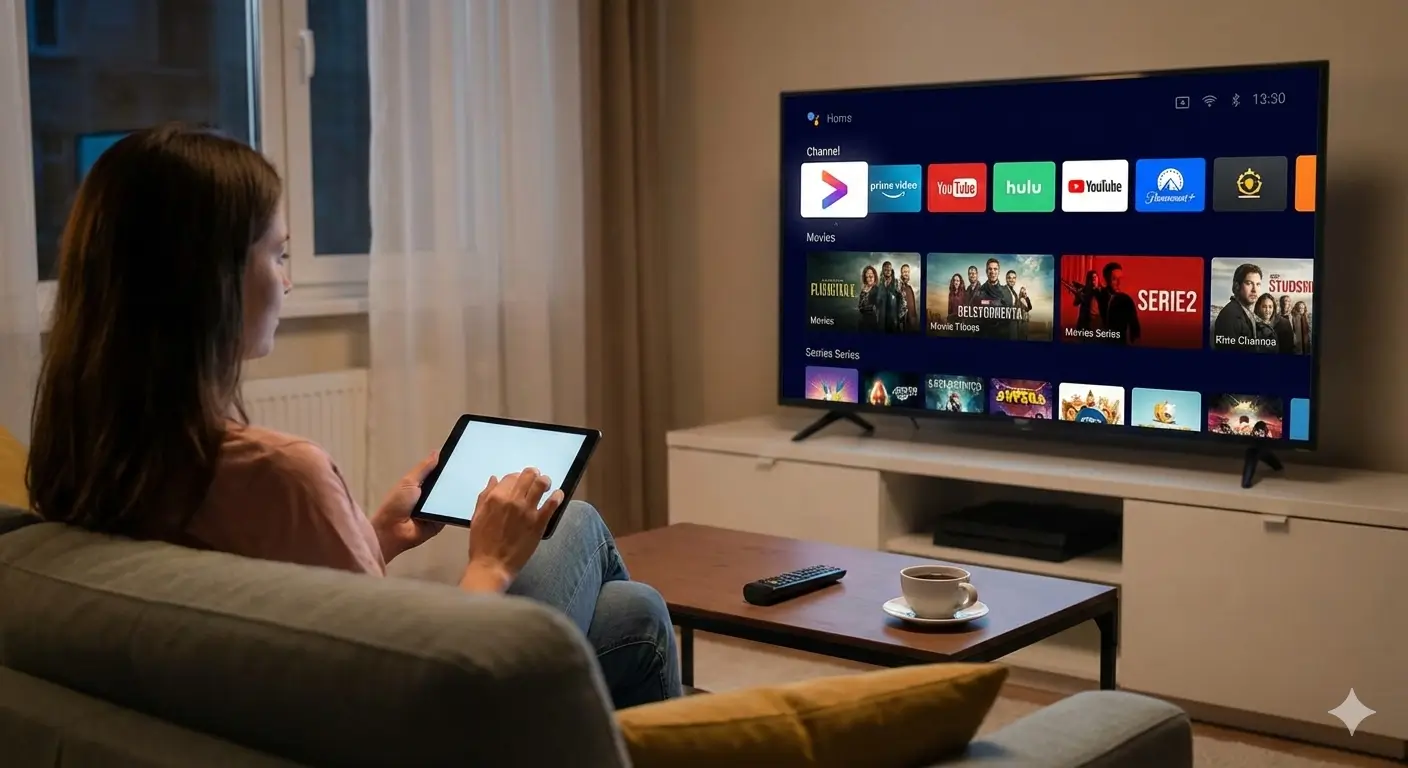
Simply copy and paste your login details to start
watching.
Step 5: Enjoy!
That’s it! You should
now see a dashboard with “Live TV”, “Movies”, and “Series”. Click on Live TV to browse the channels. You can
create favorites, search for shows, and explore the guide.
If you have any issues,
check your internet connection or contact your provider. For more detailed setup guides for specific devices,
visit Smarters Pro.
Sit back, relax, and enjoy your new world of
entertainment.