

How to Install IPTV on iPhone and iPad
Apple devices are known
for being secure and a bit closed off. Because of this, many people think they can’t watch IPTV on their iPhone
or iPad. But that is not true! It is actually very easy to turn your Apple device into a portable TV. You just
need the right app. In this guide, we will show you the best apps to use and how to set them up in minutes. For
a smooth experience, we recommend IPTV Smarters PRO.
Watch your favorite channels anywhere with your
iPhone.
Step 1: Choose Your
App
Unlike Android, you
can’t easily install apps from outside the store. You must use the Apple App Store. Luckily, there are great
options available officially.
Top
Recommendation: Smarters Player Lite
This is the iOS version
of the famous IPTV Smarters Pro. It is free, fast, and looks great.
Alternative:
GSE Smart IPTV
A powerful player with
many features, but the interface is a bit more complex.
Always download from the official App Store for
security.
Step 2: Download
and Install
- Open the App Store on your iPhone or iPad.
- Search for “Smarters Player Lite”.
- Tap Get to install it.
- Once finished, tap Open.
Did You Know?
You can use the same subscription on your phone and your TV
(but usually not at the same time unless you pay for extra connections).
Step 3: Log In with
Xtream Codes
When you open the app,
it will ask for your login details. The easiest way is to use the Xtream Codes API method.
- Accept the Terms of Service.
- Select “Login with Xtream Codes API”.
- Enter a name for your playlist (e.g., “My iPhone TV”).
- Enter your Username, Password, and
URL. (These are in the email from your provider). - Tap Add User.
Enter your details exactly as they appear in your
email.
Step 4: Start
Watching
After logging in, you
will see the main dashboard. You can browse:
- Live TV: For sports and news.
- Movies: For on-demand films.
- Series: For TV shows.
Tap on any category to
start streaming. The quality on iPhone’s Retina display is usually stunning.
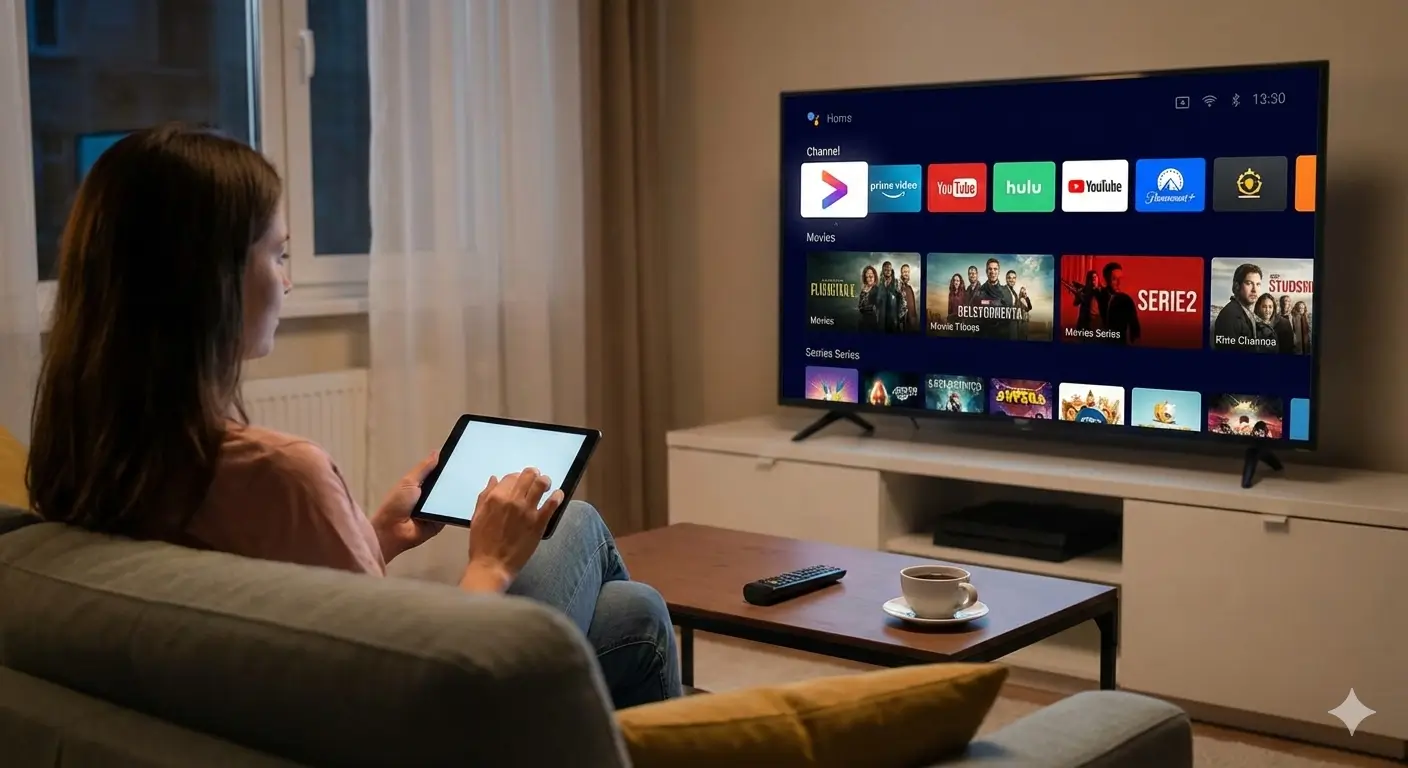
iPads are perfect for watching TV in bed or on the
go.
Tips for iPhone
Users
- Use Wi-Fi: Streaming video uses a lot of data. Try to use Wi-Fi
instead of your mobile data plan to avoid extra charges. - AirPlay: You can use AirPlay to send the video from your iPhone to
your Apple TV or compatible Smart TV. - Background Play: Some apps allow audio to keep playing even if you
close the screen, which is great for listening to news or commentaries.
Conclusion
Installing IPTV on an
iPhone is fast, safe, and easy. It gives you the freedom to take your TV with you wherever you go. Whether you
are waiting at the airport or relaxing in the park, your favorite shows are just a tap away. For more guides,
visit Smarters Pro.
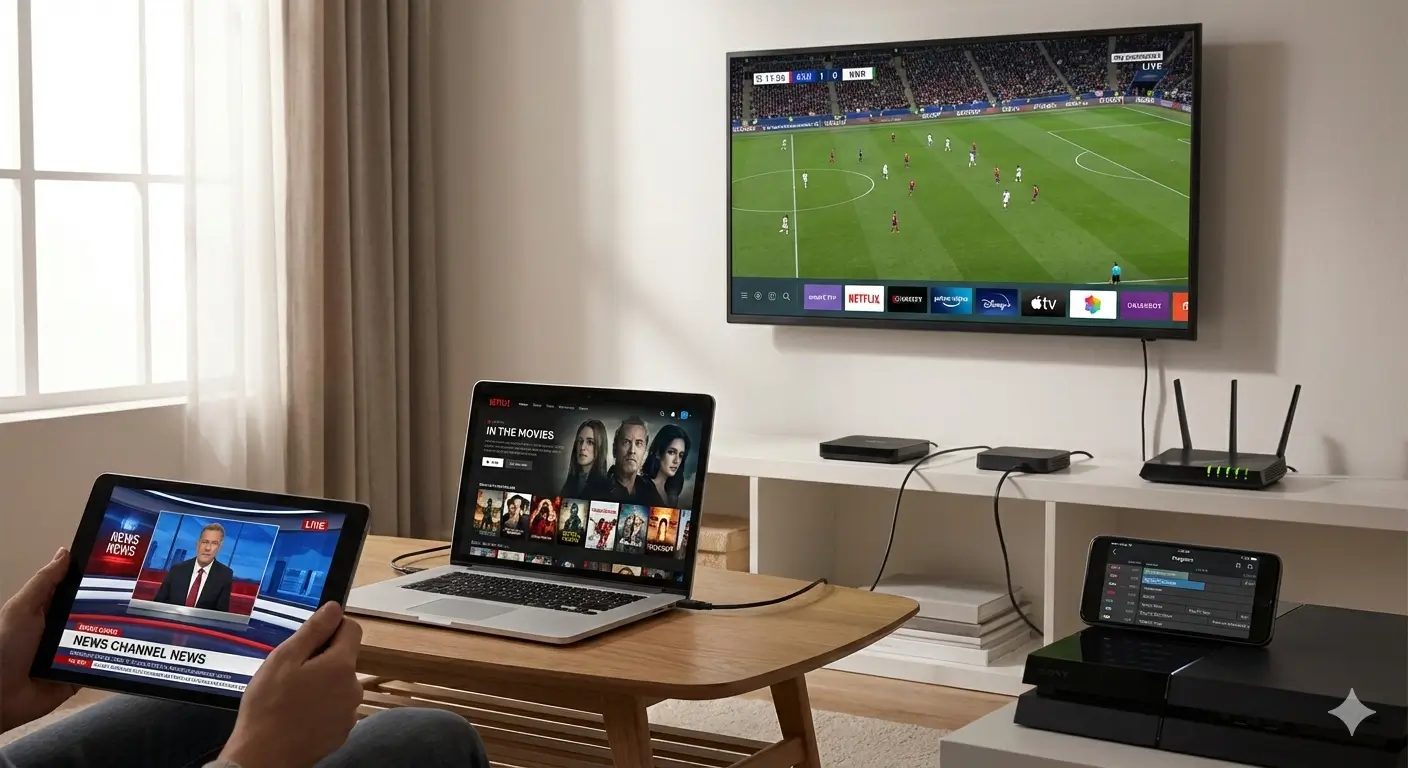
Your pocket-sized TV is ready to go.