

How to Add an M3U Playlist to Your IPTV Player
If you are new to IPTV,
you might be confused by the term “M3U Playlist”. It sounds technical, but it is just a text file that contains
links to all your TV channels. Adding it to your player is the key to unlocking your content. In this guide, we
will explain what it is and how to add it to popular apps like IPTV Smarters and VLC. For the best compatibility
with M3U playlists, we recommend using IPTV Smarters PRO.
The M3U file is the map to your TV channels.
What is an M3U
Playlist?
Think of an M3U
playlist like a menu. It tells your video player where to find the video stream for each channel. It usually
looks like a long web link:
http://provider-domain.com:8080/get.php?username=user&password=pass&type=m3u
Your IPTV provider
sends you this link in your welcome email.
Tip
Never share your M3U link! Anyone with the link can watch
your TV and steal your subscription.
Method 1: Adding to
IPTV Smarters Pro
This is the most common
way.
- Open the app.
- Select “Load Your Playlist or File/URL”.
- Give it a name (e.g., “My Playlist”).
- Select “M3U URL” as the playlist type.
- Paste your long link into the box.
- Click “Add User”.
Simply paste your link and the app does the rest.
Method 2: Adding to
VLC Media Player
Great for quick testing
on a PC.
- Open VLC.
- Press Ctrl + N (or Cmd + N on Mac).
- Paste your M3U URL.
- Click Play.
VLC is the quickest way to verify if your playlist
works.
Common Issues
“Playlist Load
Error”: This usually means you typed the URL wrong. It is very long and case-sensitive. It is best
to copy and paste it if possible.
“Empty
Playlist”: Your subscription might be expired, or your provider has blocked your IP.
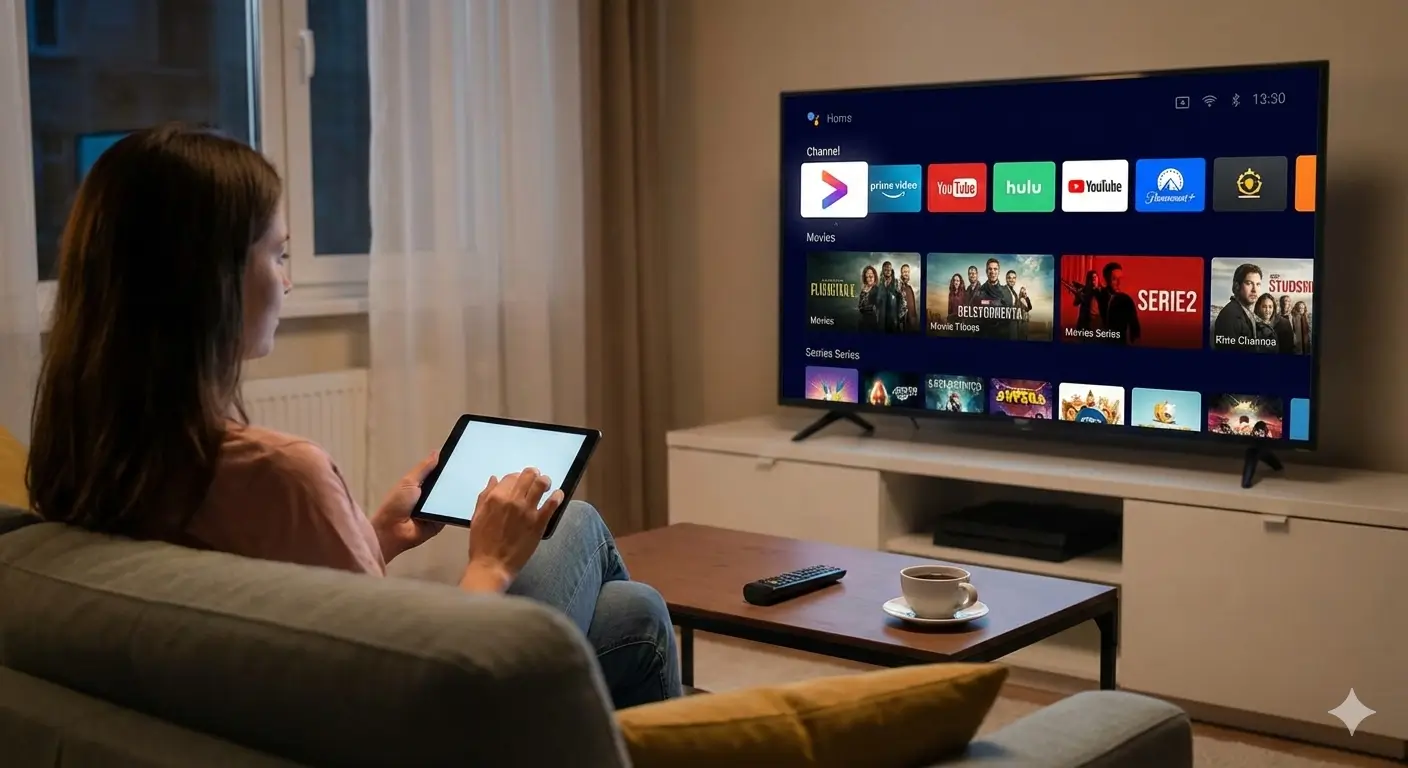
Double-check every character in your URL if you see
an error.
Conclusion
Adding an M3U playlist
is the first step to enjoying IPTV. Once you understand that it is just a link connecting you to the server, it
becomes very simple. Whether you use Smarters Pro, VLC, or any other player, the process is almost always the
same: Copy, Paste, Play. For more detailed tutorials, visit Smarters Pro.
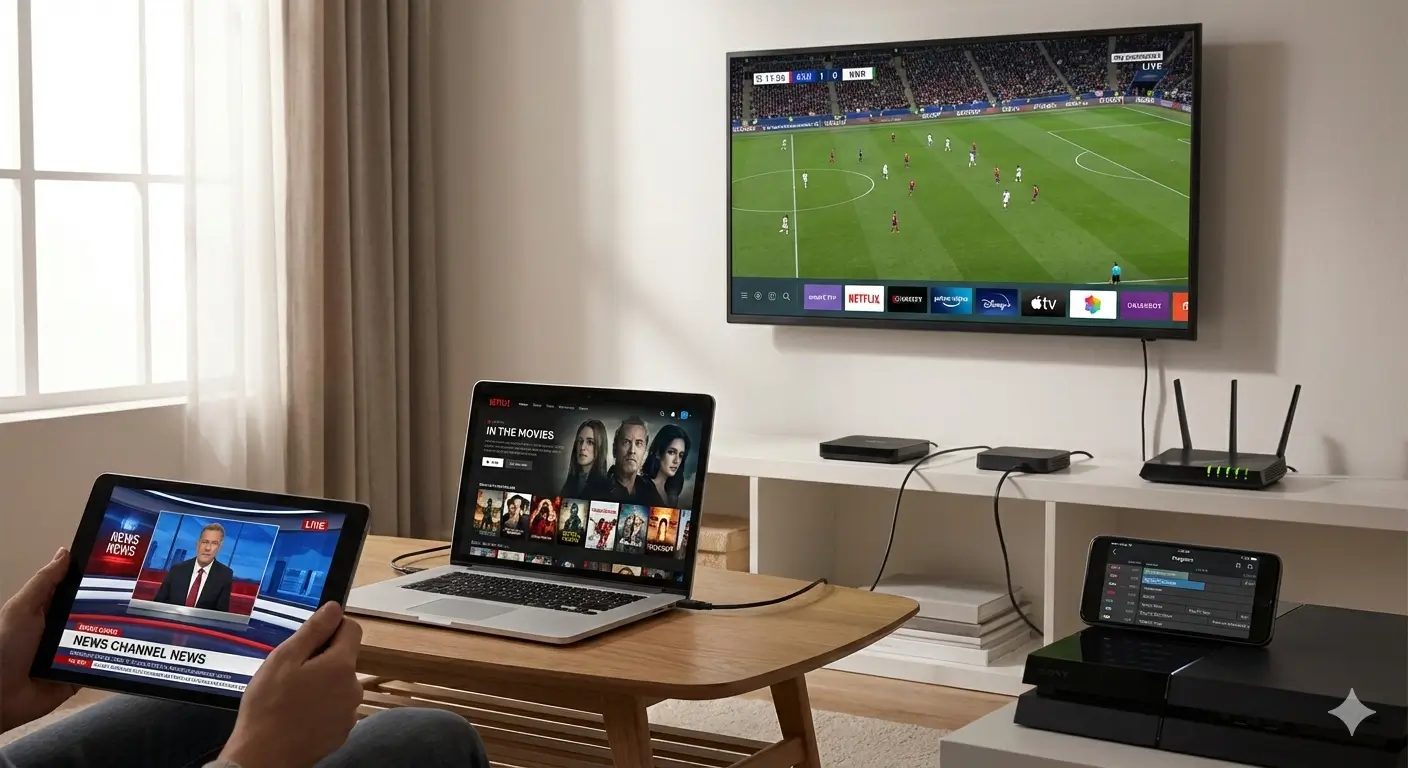
Success! Your channels are now ready to watch.