

📺 Fix IPTV Black Screen Issues on Samsung Smart TV
You turn on your Samsung Smart TV, open your IPTV app, and… nothing. Just a black screen. The sound might be
working, or maybe there is no sound at all. It is frustrating, especially when you just want to relax.
Samsung TVs (Tizen OS) are great, but they can be a bit strict with IPTV apps. The good news is that this problem is
usually easy to fix. In this guide, we will show you 5 simple steps to get your picture back.
1. The “Cold Boot” (Restarting Correctly)
Turning your TV off with the remote doesn’t actually turn it off; it just puts it to sleep. To fix the black screen,
you need to do a “Cold Boot” to clear the system memory.
How to do it:
- While the TV is on, hold down the Power button on your remote.
- Keep holding it for about 5-10 seconds until the Samsung logo appears on the screen.
- Let go. The TV will restart completely.
Alternatively, you can just unplug the TV from the wall socket, wait 60 seconds, and plug it back in.
A real restart clears out all the bugs.
2. Reinstall the App
If the restart didn’t work, the app itself might be corrupted. This happens often after a software update.
- Press the Home button on your remote.
- Go to Apps.
- Go to Settings (gear icon at the top right).
- Find your IPTV app (e.g., Smarters, IBO Player, Nanomid).
- Select Delete.
- Restart your TV (Step 1).
- Go back to the App Store and install it again.
3. Change the Media Player Setting
This is the secret fix that works for 90% of people. Samsung TVs struggle to play certain video formats (like MKV or
TS) used by IPTV providers.
If your app has settings (like IPTV Smarters or IBO Player):
- Open the App Settings.
- Look for Player Selection or Stream Format.
- Change it from “Native” (or Tizen) to “HLS” or “MPEGTS”.
- Save and try watching a channel.
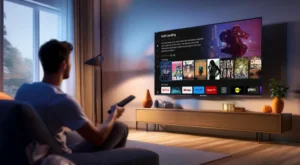
Changing the player format can instantly fix the black
screen.
4. Check Your Internet (IPv6 Issue)
Samsung TVs sometimes have a bug with “IPv6” internet addresses. If your router uses IPv6, the IPTV app might get
confused and show a black screen.
The Fix:
- Go to your TV Settings > General > Network > Network
Status. - If it says “Connected to Internet” but apps don’t work, try connecting to your phone’s Hotspot.
- If it works on the hotspot, the problem is your Router. You need to disable IPv6 in your router settings (or ask
your ISP to do it).
5. Reset Smart Hub
If nothing else works, you might need to reset the “Smart Hub” (the app system of the TV). This will delete all your
apps and log you out of everything, so do this last.
- Go to Settings > Support > Device Care > Self
Diagnosis. - Select Reset Smart Hub.
- Enter your PIN (default is 0000).
- Wait for it to finish, then install your IPTV app again.
💡 Expert Tip
“Samsung TVs are notorious for blocking IPTV apps during updates. If you keep having issues, we highly recommend
buying a cheap Amazon Fire Stick 4K. It plugs into your Samsung TV but runs Android, which is
100x better for IPTV.”
🚀 Still Not Working?
If you still see a black screen, your subscription might be expired or blocked.
👉 Test your link on a phone first. If it works on your phone but not the TV, the issue is the TV.
👉 Need a better player? Try smarters-pro.net
👉 Need a stable line? Visit iptvsmarters-pro.net/
Good luck fixing your TV! 🛠️📺