

Can I Use Subtitles on IPTV? (Movies & Live TV)
Whether you are hard of
hearing, learning a new language, or just trying to understand what the actors are mumbling, subtitles are
essential. Netflix has them for everything. But does IPTV? The answer is yes, but it is not always automatic.
Sometimes you have to turn them on, and sometimes you have to download them yourself. In this guide, we will
show you how to enable subtitles for live channels and movies on the most popular IPTV apps. For a player with
built-in subtitle support, we recommend IPTV Smarters PRO.
Read along.
Subtitles for
Movies & Series (VOD)
This is the easiest
part. Most VOD content comes with embedded subtitles.
When playing a movie,
look for a “CC” or “Speech Bubble” icon in your player controls. Click it, and you should see a list of
available languages (English, Spanish, French, etc.). Just select one, and you are good to go.
Missing
Subtitles?
If a movie doesn’t have subtitles, advanced players like MX
Player or VLC allow you to “Search Online” for subtitles right inside the app. It connects to
OpenSubtitles.org and downloads them for you.
Subtitles for Live
TV
This is trickier. Live
TV subtitles (Teletext or DVB subtitles) are embedded in the stream by the broadcaster.
Many IPTV providers
strip these out to save bandwidth. However, premium providers often keep them intact. To check, long-press the
“Select” button on your remote while watching a channel and look for the “Subtitle” track option.
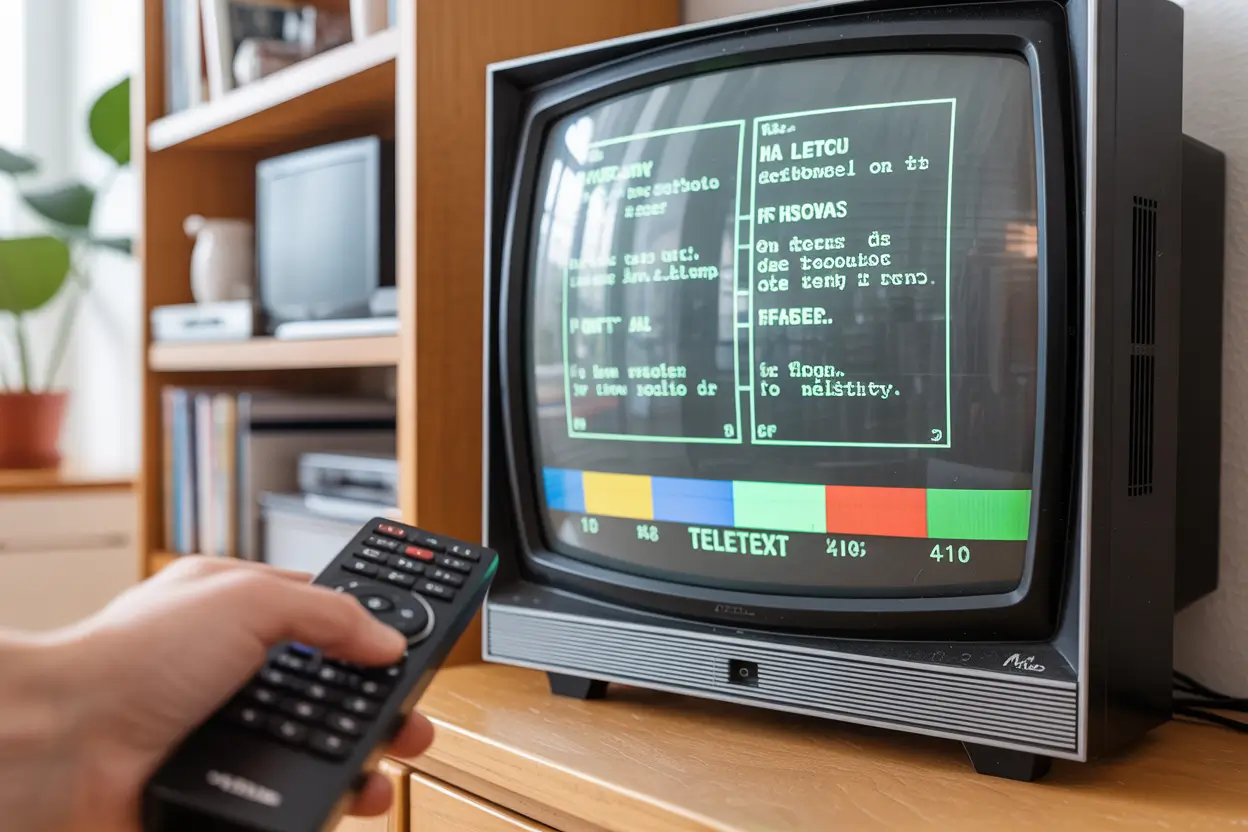
Select your language.
Best Apps for
Subtitles
If subtitles are a
priority, use one of these players:
- VLC Player: The king of subtitles. Supports every format and online
search. - MX Player: Great customization. You can change the size, color, and
font of the text. - TiviMate: Excellent support for DVB subtitles on live channels.
VLC plays everything.
Sync Issues
Sometimes the text
appears 3 seconds before the actor speaks. It is annoying.
Good players allow you
to fix this. Look for “Subtitle Delay” or “Synchronization” in the menu. You can add or subtract milliseconds
until the text matches the audio perfectly.
Get it in sync.
Conclusion
Subtitles are available
on IPTV, but you might need to dig into the settings to find them. For movies, it is easy. For live TV, it
depends on your provider. Using a versatile player like VLC or MX Player gives you the best chance of finding
the right words. Start watching with Smarters Pro.
Never miss a word.