

How to Update Your IPTV App (And Why You Must)
Is your IPTV app
crashing? Are channels buffering more than usual? Or maybe the EPG is empty? The problem might not be your
internet or your provider. It might be your app. Like any software, IPTV players need to be updated regularly to
fix bugs and add new features. But because many of these apps are “sideloaded”, they don’t update automatically.
In this guide, we will show you how to keep your player fresh and fast. For the latest features, always use the
newest version of IPTV Smarters PRO.
Don’t ignore that update button!
Method 1: Google
Play Store (The Easy Way)
If you installed your
app (like TiviMate or Smarters) from the official Google Play Store, updating is automatic.
- Go to the Play Store on your device.
- Click on your profile icon.
- Select “Manage apps & games”.
- Click “Update All”.
Tip
Enable “Auto-update apps” in the store settings so you
never have to do this manually.
Method 2: Using
Downloader (For Fire Stick)
If you have a Fire
Stick, you probably “sideloaded” your app using the Downloader app. These apps do not update
themselves. You have to reinstall them.
- Open the Downloader app.
- Enter the code for the new version of your app (e.g., the Smarters code).
- Download and click Install.
- It will ask if you want to update the existing app. Click “Yes” or
“Update”.
Good
News: This usually keeps your settings and playlists intact. You won’t have to log in again.
Sideloading means manual updating. It is the price of
freedom.
Method 3: In-App
Updates
Some premium apps (like
Smarters Pro) have a built-in update checker.
- Open the app and go to Settings.
- Look for “Check for Updates” or “About”.
- If there is a new version, a popup will appear asking you to download it.
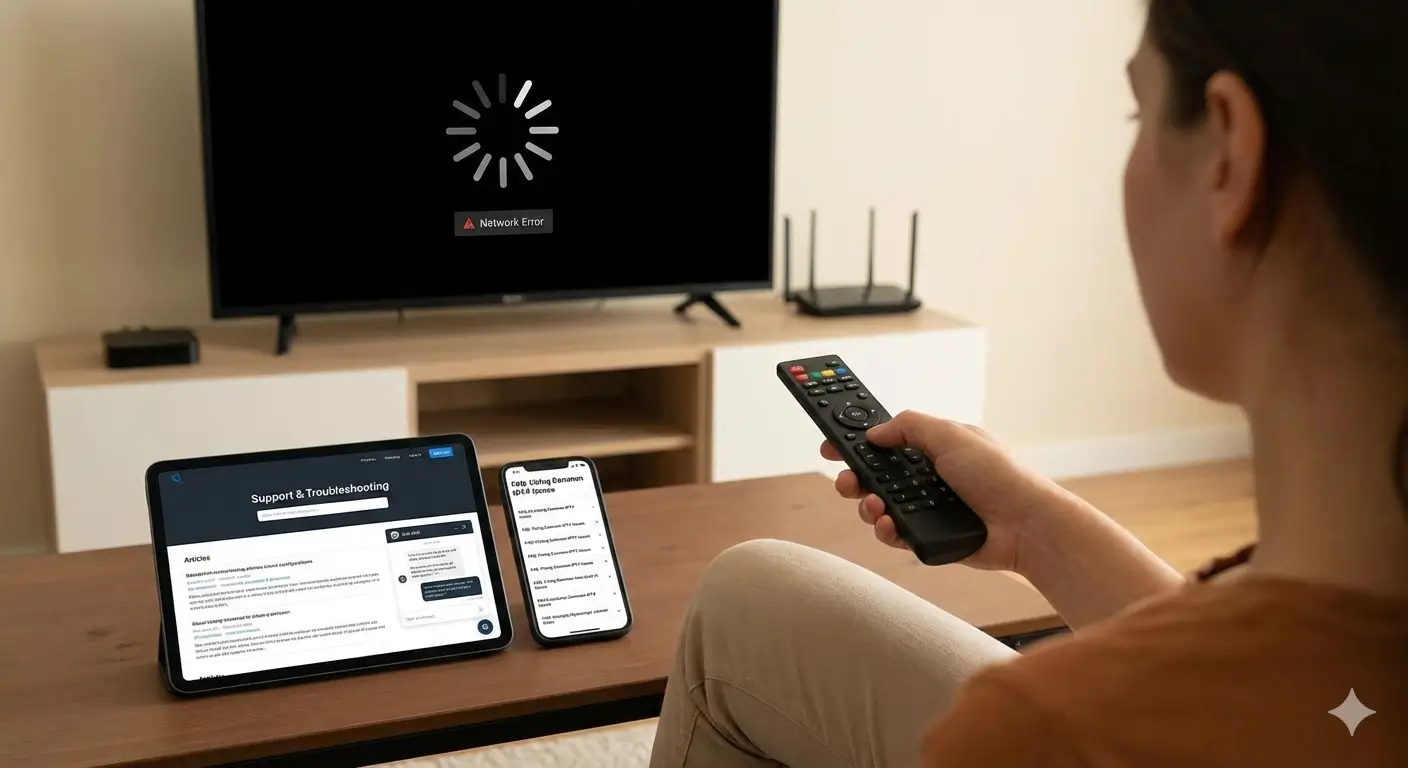
Always check the settings menu first.
Why Should You
Update?
You might think, “If it
ain’t broke, don’t fix it.” But outdated apps cause problems:
- Security Risks: Old apps have vulnerabilities that hackers can
exploit. - Compatibility: Your provider might change their server technology.
Old apps won’t be able to connect. - Speed: Updates often include performance improvements that make the
app faster.
Updates keep your device safe and smooth.
Conclusion
Updating your IPTV app
takes 2 minutes, but it saves you hours of frustration. Make it a habit to check for updates once a month. It
ensures you always have the best picture quality, the fastest menus, and the latest features. Stay up to date
with Smarters Pro.
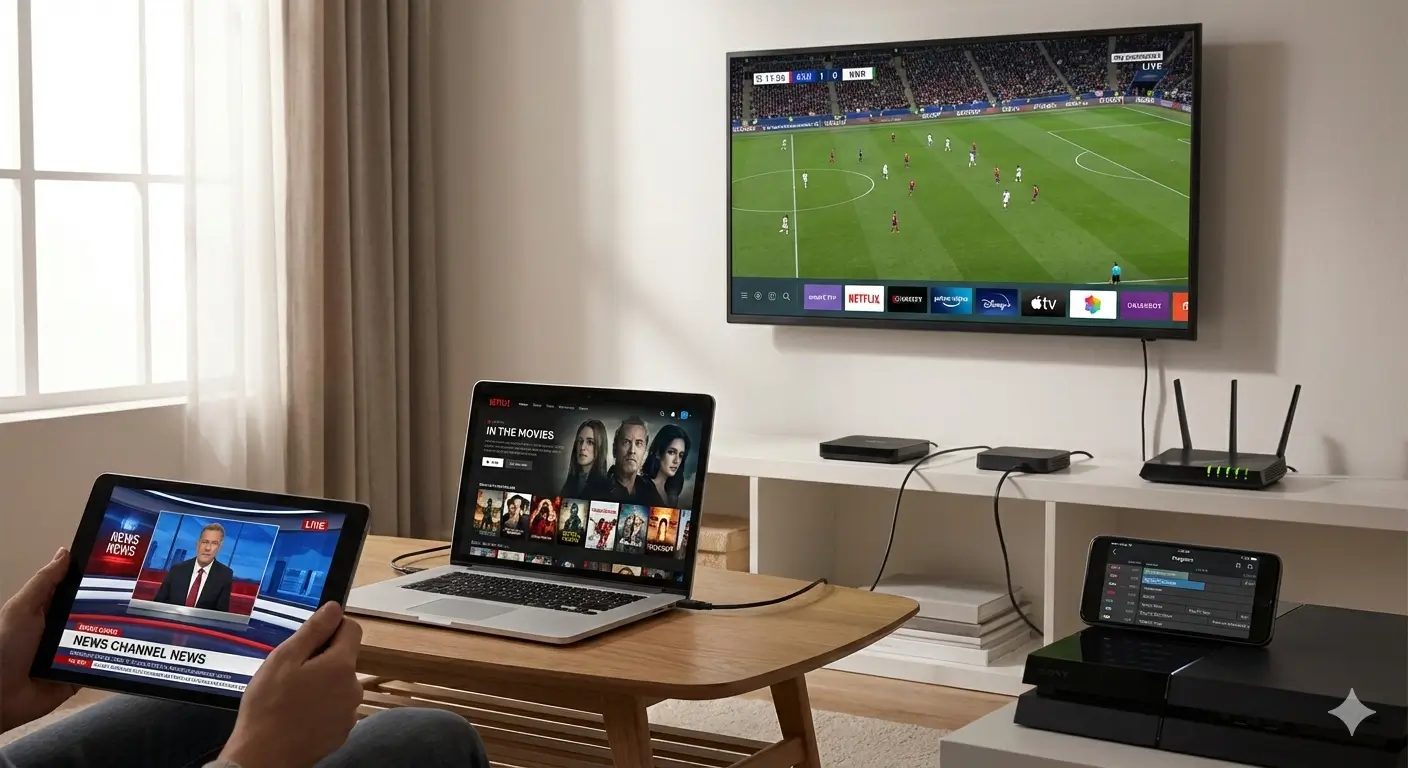
A fresh app is a happy app.