

How to Watch IPTV on Your Windows PC
Watching TV on your
computer is great. You can have the news on in the background while you work, or watch a movie in bed on your
laptop. Setting up IPTV on Windows is very simple because computers are powerful and can handle any video
format. In this guide, we will show you the best free software to use and how to set it up. For a dedicated IPTV
application experience, we recommend IPTV Smarters PRO.
Turn your laptop into a portable TV station.
Option 1: IPTV
Smarters Pro (Recommended)
This is the best option
if you want a “TV-like” experience with a nice menu and guide.
- Download: Go to the official website and download the Windows
version of IPTV Smarters Pro. - Install: Run the .exe file and follow the instructions.
- Login: Open the app and enter your Username, Password, and URL.
It works exactly like
the version on your TV or phone.
The Windows app gives you a clean, easy-to-use
interface.
Option 2: VLC Media
Player (Quickest)
If you just want to
check if a channel works, or if you prefer a simple video player, VLC is the king. It plays everything.
Step 1: Get
Your M3U URL
You need the long link
that starts with “http://” and ends with “.m3u”. Check your email from your provider.
Step 2: Open
Network Stream
- Open VLC.
- Click on Media in the top left corner.
- Select Open Network Stream (or press Ctrl+N).
- Paste your M3U URL into the box.
- Click Play.
VLC is a powerful tool for testing and watching
streams.
How to Change
Channels in VLC
This is the tricky
part. VLC doesn’t have a traditional TV guide.
- Go to View in the top menu.
- Click on Playlist (or press Ctrl+L).
- You will see a list of all channels. Double-click one to play it.
- Use the search bar at the top to find a specific channel.
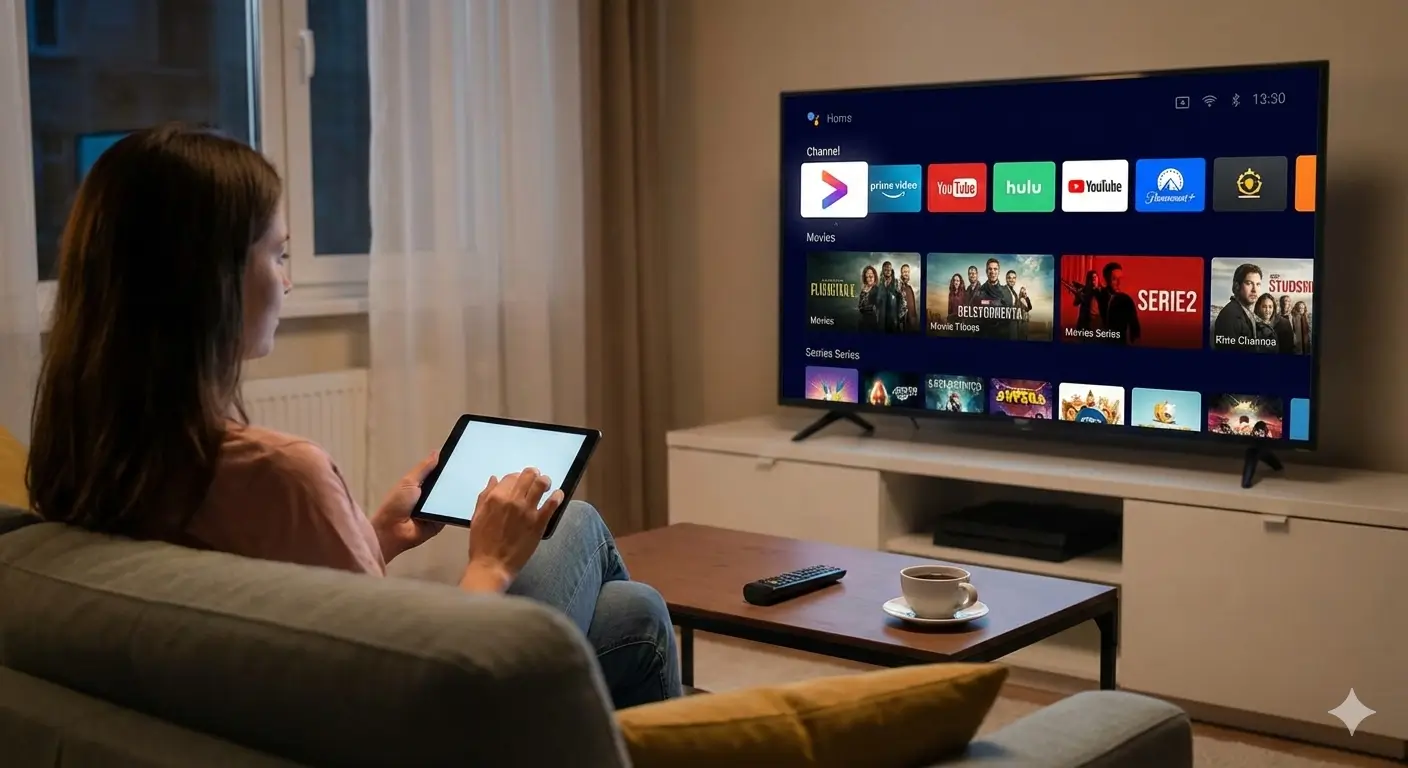
The playlist view lets you search and select channels
easily.
Which One Should
You Choose?
Verdict
Use IPTV Smarters for daily watching
(movies, series, browsing). Use VLC for quick testing or if you want a lightweight player.
Conclusion
Windows PCs are
excellent IPTV devices. Whether you use a dedicated app or a media player like VLC, you can enjoy high-quality
streaming on a big monitor. It is the perfect way to multitask or enjoy entertainment in your home office. For
more help, visit Smarters Pro.
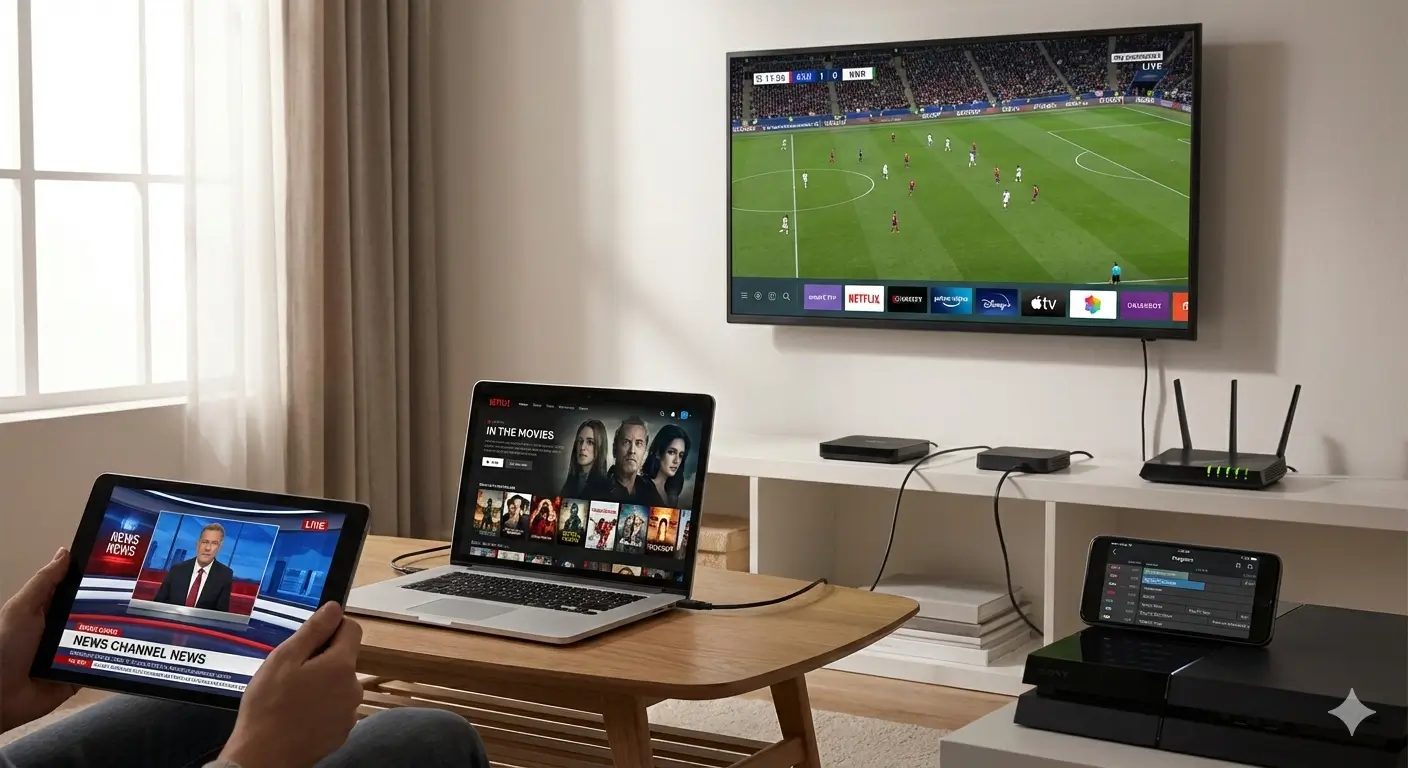
Work and play at the same time with IPTV on Windows.