

How to Install IPTV on Amazon Fire Stick
The Amazon Fire Stick is the most popular device for IPTV users. It is cheap, fast, and easy to use. However, most IPTV apps are not available directly in the Amazon App Store. This means you have to “sideload” them. It sounds complicated, but it is actually very simple. In this guide, we will show you how to install IPTV on your Fire Stick in 5 easy steps. We recommend using the IPTV Smarters PRO app for the best experience.
Unlock the full potential of your Fire Stick with IPTV.
Step 1: Prepare Your Fire Stick
First, you need to allow your Fire Stick to install apps from outside the Amazon Store.
- Go to Settings on your home screen.
- Select My Fire TV.
- Click on Developer Options. (If you don’t see this, click on “About” and click the name of your Fire Stick 7 times fast).
- Turn ON Apps from Unknown Sources.
Don’t Worry
This is safe. It just means you are allowing apps that Amazon hasn’t reviewed personally.
Step 2: Get the Downloader App
Since we can’t find IPTV apps in the store, we need a tool to download them from the web.
- Go to the Search icon on your home screen.
- Type “Downloader”.
- Select the orange app called Downloader.
- Click Download or Get.
The Downloader app is your bridge to the rest of the internet.
Step 3: Download IPTV Smarters Pro
Now we will use the Downloader app to get the player.
- Open Downloader.
- In the URL box, type this code: 78522 (or search for “IPTV Smarters Pro APK”).
- Click Go. The file will start downloading.
- When it finishes, click Install.
Wait for the progress bar to finish, then install.
Step 4: Log In
Open the IPTV Smarters Pro app. You will see a login screen. Choose “Login with Xtream Codes API”. Enter the details sent to you by your IPTV provider (Username, Password, and URL).
Enter your credentials carefully. They are case-sensitive.
Step 5: Clean Up
After installing, the Downloader app might ask if you want to delete the APK file. Click Delete. You don’t need the installation file anymore, and it saves space on your Fire Stick.
Conclusion
You have successfully installed IPTV on your Fire Stick! Now you can access thousands of channels and movies. It is a simple process that unlocks a world of entertainment. For more tips and tricks, visit Smarters Pro.
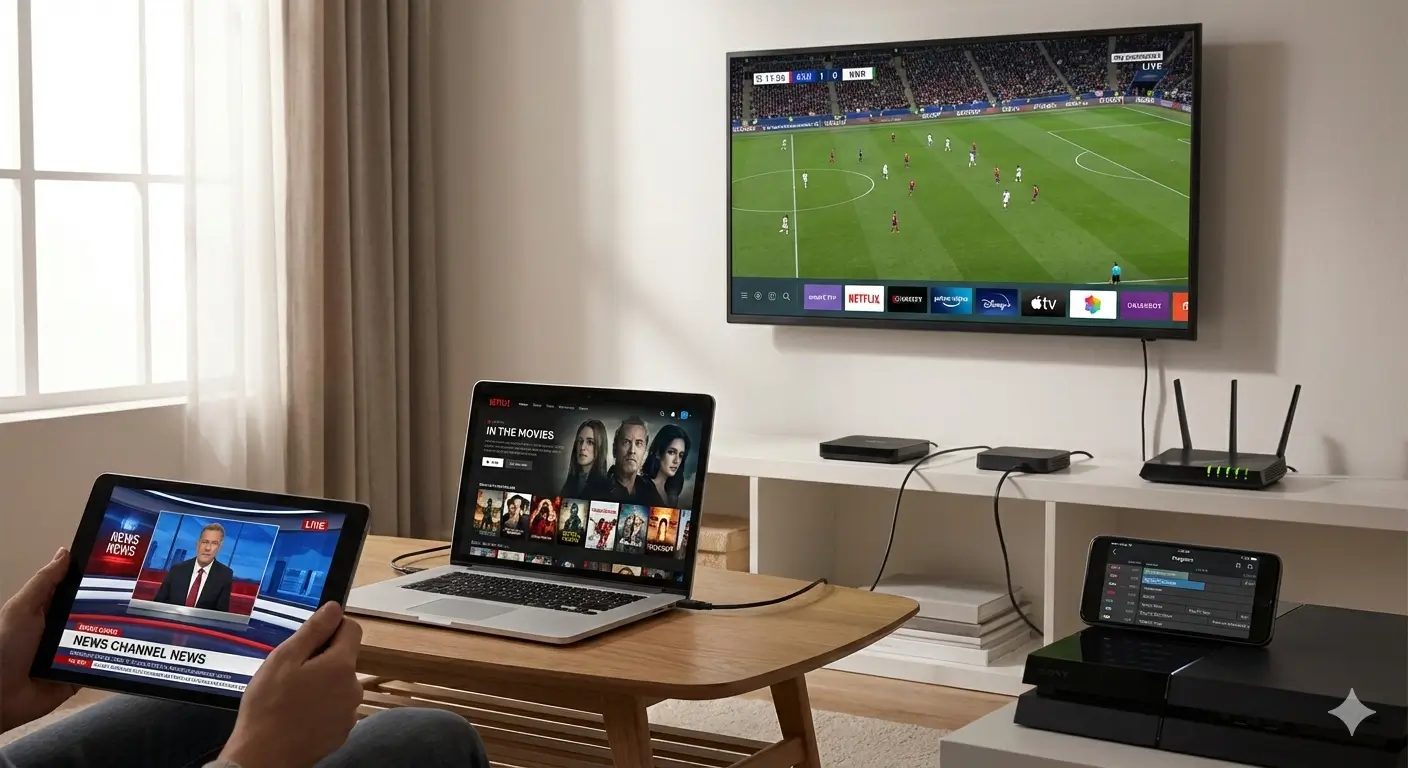
Sit back and enjoy your new streaming setup.