

🔒 How to Setup Parental Controls on IPTV Apps (2025)
IPTV gives you access to thousands of channels from around the world. But let’s be honest: not all of them are
suitable for children.
Whether it is adult content, violent movies, or just channels you don’t want them watching, you need to lock them
down. Here is how to set up a PIN code on the most popular apps.
1. How to Lock Channels on IPTV Smarters Pro
Smarters has a great built-in locking system. You can lock specific categories (like “Adults Only”) or individual
channels.
- Open the app and go to Settings.
- Select Parental Control.
- Create a PIN (Default is often 0000). Change this immediately!
- Click on the Category you want to lock (e.g., “XXX” or “Horror Movies”).
- A “Lock” icon will appear next to it.
Now, anyone trying to open that folder will need the PIN.

Keep your kids safe with a 4-digit code.
2. How to Lock Channels on TiviMate
TiviMate offers even more control. You can hide channels completely so your kids don’t even know they exist.
- Go to Settings > Parental Control.
- Turn it ON and set a PIN.
- Go to your TV Guide.
- Long-press the Select button on a group (e.g., “Adult”).
- Select “Block Group” or “Hide Group”.
If you choose “Hide”, the group disappears from the list entirely.
3. Ask Your Provider to Remove Adult Content
If you don’t trust the app (or if your kids are smart enough to guess the PIN), go to the source.
Most premium IPTV providers can disable adult content on their server.
- Email your provider or open a support ticket.
- Ask them to “Disable Adult/XXX Categories” for your line.
- Restart your app.
The channels will vanish from your playlist forever. This is the safest method.
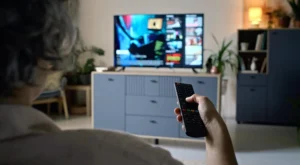
Peace of mind for the whole family.
4. Use Amazon Fire Stick Parental Controls
You can also lock the entire device. This prevents your kids from opening the IPTV app in the first place.
- Go to Fire Stick Settings > Preferences.
- Select Parental Controls.
- Turn it ON.
- Set a PIN.
- Select “PIN Protect App Launches”.
Now, every time they click on “IPTV Smarters”, it will ask for the code.
💡 Expert Tip
“Don’t use 1234 or your birth year. Kids are smarter than you think. Use a random number and don’t write it down
near the TV.”
🚀 Conclusion
It takes 2 minutes to set up a PIN, but it saves you from awkward moments later. Use the “Hide” feature in TiviMate
for the best protection.
👉 Need a family-friendly provider? Visit iptvsmarters-pro.net/
Happy (safe) streaming! 🔒📺